reading-notes
u# Class 9 - Forms and Events
Lab 9 - Salmon Cookies Pt. 4
Setup
Today you will be adding a form to your existing cookie stand project so that you can add new locations to the table by simply inputting their information with the form.
-
Create a new HTML form to accept the information for a new cookie stand. Be sure to utilize the
<fieldset>tag to help you style it. -
Upon submission of the HTML form, create an event handler that creates a new instance of a cookie stand that appends to the table upon form submission.
-
Use the constructor function as your guide to determine what input fields your form needs (hint: also consider what is passed in when creating instances!).
-
If not complete from lab 7, write a stand-alone function to generate a footer row which will display the total number of cookies sold per hour for all locations. When a new store is added using your form, the totals in the footer row should update to include these new sales numbers.
- HINT: The document.querySelectorAll() method might be useful when re-rendering your footer row Document.querySelectorAll().
-
Run your Lighthouse Accessibility report looking for a score between 65-80. Make adjustments as needed. Add a screenshot of your score to your README.md.
-
Anywhere you have repeated chunks of code, apply some DRY principles. Generally, once some chunk of code is appearing for a 3rd time or so, that’s when you want to consider refactoring.
-
Validate your html through HTML5 validation.
-
Confirm that your code is following the single responsibility rule. Each function should only do one thing, with the capability to break it out further as needed.
Written Class Notes
Forms:
Fields = <input type ="text"/> or
-
Text:
<input type="text">- Allows users to enter a single-line text input. -
Checkbox:
<input type="checkbox">- Represents a checkbox that users can toggle on or off. (Used for multiple selections.) -
Radio:
<input type="radio">- Represents a radio button, allowing users to select one option from a group of options. ( Used for single selection within a group of options.) -
Password:
<input type="password">- Similar to the text input, but the characters are masked for security. -
Email:
<input type="email">- Specifically designed for email addresses, with built-in validation for correct email format. -
Number:
<input type="number">- Allows users to enter numerical values. Up and down arrows are provided for easier input. -
Date:
<input type="date">- Provides a date picker interface for selecting dates. -
Time:
<input type="time">- Offers a time picker for selecting time values. -
File:
<input type="file">- Enables users to upload files from their device. -
Submit:
<input type="submit">- Used within forms to submit data to a server. -
Reset:
<input type="reset">- Resets the form fields to their default values. -
Hidden:
<input type="hidden">- Allows developers to store data that will not be displayed to users but can be submitted with a form.
Dropdown
Dropdown = <select> used to create a dropdown menu, allowing users to choose one or more options from a list.
-
Multiple Selection: users can select multiple options by holding down the Ctrl key (or Command key on Mac) while clicking the options.
 `<select multiple>
   <option value="option1">Option 1</option>
   <option value="option2">Option 2</option>
   <option value="option3">Option 3</option>
 </select>`
Buttons
Button: with the type attribute specifies the type of action to be performed when the button is clicked. In HTML, the <button> element with the type attribute specifies the type of action to be performed when the button is clicked. Besides the type="submit", which is used for form submission, there are a few other commonly used type values for the <button> element:
- Submit Button:
<button type="submit">Submit</button>
- This type is used inside
<form>elements to submit form data to a server when clicked.
- Reset Button:
<button type="reset">Reset</button>
- Resets all form controls to their initial values. This is typically used inside
<form>elements to clear the form fields.
- Button (Default):
<button>Click me</button>or<button type="button">Click me</button>
- If the
typeattribute is not specified or set to"button", the button acts as a regular button control and does not have any specific behavior associated with it. JavaScript can be used to define custom actions when this button is clicked.
- Button (Hyperlink Style):
<button type="button" onclick="window.location.href='https://example.com'">Go to Example</button>
- JavaScript can be used to navigate to a specified URL when this button is clicked, simulating a hyperlink behavior.
- Button (JavaScript Function):
<button type="button" onclick="myFunction()">Click me</button>
- JavaScript functions can be triggered when this button is clicked. The function can perform custom actions defined by the developer.
- Button (Image):
<button type="button"><img src="button-icon.png" alt="Button Icon"></button>
- An image can be used inside a button to create a button with a graphical icon. JavaScript functions or other actions can be associated with this button as needed.
Inline or use div to move name on top (input is inline)
<span>Name:</span>
<input type="text" placeholder="please enter your name"/>
Does the same thing:
Example 1
<label for="name">name:</label>
<input id="name" type="text" placeholder="please enter your name"/>

Example 2
<label>
<span>Name</span>
<input type "text" name= "name"/>
</label>
<label>
<span>Phone</span>
<input type "text" name= "phone"/>
</label>
Input fields: input, select textarea
Properties:
Id:uniqueName: names the field uniquelyType: text/radio/checkbox/email/phonePlaceholder: preview textValue: real value (actual text)Disabled= dims it out and you can’t type into it
Forms: When you submit the data to the server it reloads the page from the server by default but with JS, we can intercept that, process the form data in JS and redraw in real time
Syntax for adding an event listener to an element:
element.addEventListener('event', function(event) {
// inside brackets is the Code to be executed when the event occurs
});
event.target.name = retrieves the name attribute of the HTML element that triggered the event. Example the name here would be breed: <input type="text" id="name"name="breed">
event.target.value = retrieves the current value entered, For input fields, this property contains the text entered by the user.
A way to dynamically assign a property to an object in JavaScript when the property name is stored in a variable:
```javascript
newDogObject[event.target.name] = event.target.value;
```

1. **`event.target.name`**: This part retrieves the `name` attribute of the HTML element that triggered an event. In this context, it seems like you're dealing with a form input field. For example, if you have an input field like this:

  html
  <input type="text" name="breed" />


  `event.target.name` would be `"breed"`.

2. **`event.target.value`**: This part retrieves the current value entered by the user into the form input field. For example, if the user entered "Golden Retriever" into the input field, `event.target.value` would be `"Golden Retriever"`.

3. **Assigning a New Property to the Object Dynamically**:
  - `newDogObject` appears to be an object in your code.
  - `event.target.name` (e.g., `"breed"`) is used as the property name, and `event.target.value` (e.g., `"Golden Retriever"`) is used as the property value.
  - The line `newDogObject[event.target.name] = event.target.value;` creates a new property in the `newDogObject` object with the name specified by `event.target.name` (in this case, `"breed"`), and assigns it the value entered by the user (`event.target.value`).

This technique is especially useful when you want to create object properties dynamically based on user input or other runtime conditions. It allows you to handle different form fields without hardcoding their names into your JavaScript code.
Chat Demo HTML
    <!DOCTYPE html>
<html>
  <head>
    <title>Chatting with John</title>
    <link rel="stylesheet" href="style.css" />
  </head>

  <body>

    <ul id="chatList"></ul>

    <form id="chatForm">
      <select name="person" id="person">
        <option></option>
        <option value="John">John</option>
        <option value="Rosie">Rosie</option>
        <option value="Geno">Geno</option>
      </select>

      <input name="comment" id="comment"  placeholder="Say Something" />

      <button type="submit">Send Message</button>
    </form>

    <script src="chat.js"></script>

  </body>

</html>
CSS
ul {
border: 1px solid black
display block
list-style-type: none
height 300px
width 300px
margin 3em
overflow: auto
}

li{
margin .5em 1em

}

form {
margin 0 3em
}
In JS:
Variables:

// Get the individual inputs by their ID
const person = document.getElementById("person");
const message = document.getElementById("comment");

const form = document.getElementById("chatForm");
const chats = document.getElementById("chatList");

Constructor:

function Chat() {
// Application State
this.chats = [];
this.chatter = ""; // the person that's typing
this.message = ""; // the thing they typed

this.addMessage = function() {
if( this.chatter && this.message ) {
this.chats.push( `${this.chatter}: ${this.message}`);
}
}

this.render = function() {
// Append a new <li> to the <ul> that contains
let latestChat = this.chats[ this.chats.length - 1];
const message = document.createElement("li");
chats.appendChild(message);
message.textContent = latestChat;
}

}

const chatApp = new Chat();

// Event Listeners take 2 arguments:
// 1st: the type of event
// 2nd: function to run in response, with an "Event" object
// Event Object
// - "target" is what triggered the event

// Capture who the person is
person.addEventListener("change", function(event) {
chatApp.chatter = event.target.value;
});

// Capture what the person typed
message.addEventListener("change", function(event) {
chatApp.message = event.target.value;
});

// Render the chat into the UL

// When the form is "submitted" handle that
// Take the chat message and add it to the UL
form.addEventListener("submit", function(event) {
event.preventDefault();
form.reset();
person.focus();

// Add the message to the list
chatApp.addMessage();

// Render the new message
chatApp.render();

// Potentially ...
// Send the raw to the server and get back raw data
// Use that raw data to update
console.log(chatApp);
});
Dog Demo
HTML DOG
<!DOCTYPE html>
<html>
  <head>
    <title>Dogs</title>
    <style>
      table * {
        border: 1px solid #222;
      }
      td, th {
        padding: .5em;
      }
      th {
        background: #ccc;
      }
    </style>
  </head>
  <body>
    <form id="dogform">
      <input name="name" placeholder="Dog Name" />
      <input name="breed" placeholder="Breed" />
      <input name="age" placeholder="Age (years)" />
      <button type="Submit">Add Dog</button>
    </form>
    <table>
      <thead>
        <tr>
          <th>Dog</th>
          <th>Breed</th>
          <th>Age</th>
        </tr>
      </thead>
      <!-- in the tableBody goes ... row for each dog -->
      <tbody id="tableBody"></tbody>
      <!-- in the tableFoot goes ... summary data -->
      <tfoot id="tableFoot"></tfoot>
    </table>
    <script src="dogs.js"></script>
  </body>
</html>
JS DOG
let tableBody = document.getElementById("tableBody");
let tableFooter = document.getElementById("tableFoot");
let form = document.getElementById("dogform")
// Get all the inputs as an array
let inputs = document.querySelectorAll("input");

let dogs = [];
let newDogObject = {};

function Dog( name, breed, age ) {
this.name = name;
this.breed = breed;
this.age = age;
}

Dog.prototype.render = function() {

let nameCell = document.createElement("td");
nameCell.textContent = this.name;

let ageCell = document.createElement("td");
ageCell.textContent = this.age;

let breedCell = document.createElement("td");
breedCell.textContent = this.breed;

let row = document.createElement("tr");
row.appendChild(nameCell);
row.appendChild(breedCell);
row.appendChild(ageCell);

tableBody.appendChild(row);
}

// document.querySelectorAll gives an array/list of
// the elements that match
console.log(inputs);
for( let i = 0; i < inputs.length; i++ ) {

inputs[i].addEventListener("change", function(event) {
console.log(event.target.name, event.target.value);

    // object[property] = value;
    // this is a way to assign a new property when
    // the property name is a variable
    // I can't say newDog.breed
    newDogObject[event.target.name] = event.target.value;

});

}

function renderFooterRow() {

// Remove the contents of the <tfoot>, but not the <tfoot> itself
tableFooter.innerHTML = '';

let row = document.createElement("tr");
let nameCell = document.createElement("td");
let breedCell = document.createElement("td");
let ageCell = document.createElement("td");

// Should be the average of all ages
let totalAge = 0;
for( let i = 0; i < dogs.length; i++ ) {
totalAge += Number(dogs[i].age);
}

console.log(totalAge);
ageCell.textContent = Math.ceil(Number(totalAge / dogs.length));

tableFooter.appendChild(row);
tableFooter.appendChild(nameCell);
tableFooter.appendChild(breedCell);
tableFooter.appendChild(ageCell);
}

form.addEventListener("submit", function(event) {
event.preventDefault();
console.log(newDogObject);
let dog = new Dog( newDogObject.name, newDogObject.breed, newDogObject.age );
dogs.push(dog);
dog.render();
renderFooterRow();
});

let rosie = new Dog("Rosie", "Lab", 8);
let geno = new Dog("Geno", "Pit", 1);

dogs.push(rosie);
dogs.push(geno);

for( let i = 0; i<dogs.length; i++ ) {
dogs[i].render();
}
Describe and Define
- JavaScript’s
addEventListener(). - Anonymous functions and callbacks.
- Syntax and operations of an HTML
<form>. - Form structure, using semantic tags, including
<input>,<label>, and<fieldset>.
Answer
-
What is a JavaScript Event?
-
What 2 arguments do we need to pass into the
addEventListener()method for it to run correctly? -
What is a callback function?
-
An HTML form is used to collect
________input. -
An
<input>element can be displayed in many ways, depending on the_______attribute. -
What does
event.preventDefault()do?
Read 9 - Forms and JS Events
Bookmark and Review: HTML5 Input Types and Event Reference and Listings
Resources Link/Pages
HTML Forms
Learn JS
Answer
Statement on why this topic matter as it relates to what I’m studying in this module:
- JS events and HTML forms both make a webpage interactive, allowing responses to user actions like clicks and form submissions. The both allow user validation and also other web development frameworks like react rely on them both.
HTML Forms
-
Why are forms so important in web development?
- They are a main point of interaction between a user and a website. They allow users to provide information and can be used for a variety of purpose like user registration, feedback, online shopping etc. Forms are needed because it wouldn’t allow users to communicate their need.
-
When designing a form, what are some key things to keep in mind when it comes to user experience?
- Try to make sure your form isn’t big or else you risk losing users.
- Keep it simple so you only ask for data you need to avoid overwhelming users.
- Use clear labels for instructions so users understand what is expected in each form field
- Make it easy like start with simple questions first before harder ones
- Helpful error messages to inform users if inputs are invalid
-
List 5 form elements and explain their importance.
<form>: this element defines and contain forms.<button>: this element creates an action like submitting a form or resetting the form<label>: they add a text description for form elements so users get the purpose of each input field<textarea>: this gives users a bigger space to input longer text<input>: creates an input field for users to enter data
Learn JS
-
How would you describe events to a non-technical friend?
- Anything that happens in the thing you are programming. They are notifications or pings that something happened and can range from things like a user clicked a button or a page finished loading. They allow the webpage to respond to the event trigger.
-
When using the
addEventListener()method, what 2 arguments will you need to provide?- The type of event you want to
listenfor likeclickwhen a user clicks a button,mouseoverwhen a user moves their mouse over a button Event handler: the next argument which is the function that is executed when the first even occurs
- The type of event you want to
-
Describe the event object. Why is the target within the event object useful?
- They are parameters with different names that
event handlersuse to provide extra information. Target: this refers to the element on which the event was triggered. It shows you which element triggered the event so if you have a lot of buttons on a page thetargetshows you which button was clicked.
- They are parameters with different names that
-
What is the difference between event bubbling and event capturing?
- They are the two main phases of event propagation which is the process of how events are passed through the DOM structure.
bubbling: when the event is triggered on a specific element and the message moves back up through the elements so the event travels back up from the target element to the root of the DOM tree.capturing: when events start at the very top and move down elements to find the element that triggered the event so the event travels from the root of the DOM tree down to the target element that triggered the event.
Things I want to know more about
- Still not quite sure how server side processing works with forms, like the backend checking database for wrong user input.
Learning Journal
Write a brief reflection on your learning today, or use the prompt below to get started.
Consider the “learning pyramid as shown in the image below. Do you find that matches the way that you learn, or would you weight the activities differently? If so, how?
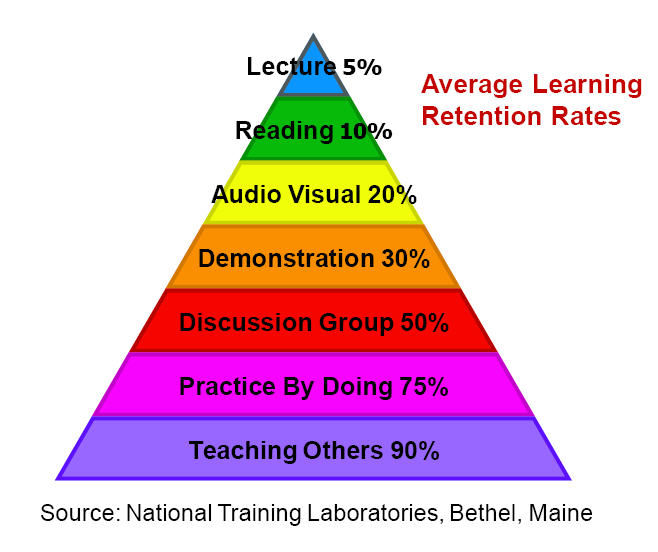
- I mainly learn by practice by doing, discussion groups, and demonstration. I weigh audio and reading below lectures. I find that I zone out more listening and reading by myself, but lectures feel more interactive. I’ve always been told that teaching others will help you retain more and I’ve seen it work for others but haven’t seen it work for me or done it enough to really find the value in it. It’s a lot harder to teach others when you’re in an environment where you are alone for most of the time.